Why players choose Chess Moon
Play chess free on our online boards. No registration, no ads, no plugin required.
Socialize
Express yourself by sharing images, videos or chess games on your wall. Integrated instant messaging features can be used.
Wild Chess
Chess variants are supported like Crazyhouse, Three Check and Fischer Chess. Thematic chess is also supported.
Free
You can play chess for a lifetime without paying. Improve your rating with chess tactics and lessons.
A complete chess experience
Everything you need, whether you play for fun or for rating.
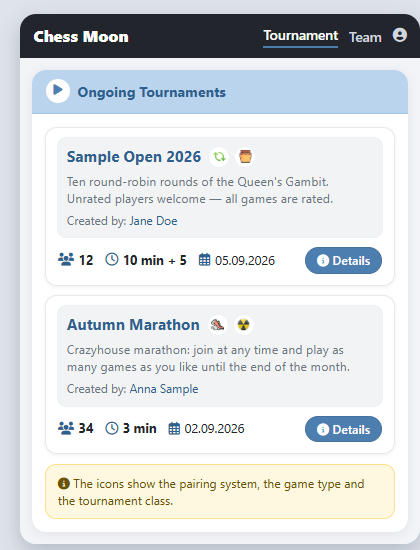
Tournaments
- Attend Thematic and Marathon tournaments. Time controls and pairing systems are configurable. We support Round-Robin and Swiss pairing systems.
- Each tournament has its own page with the entry list, standings, cross table, the games played and a PGN archive.
- Entries close when the tournament starts; before that you can join or leave it at any time.
- Detailed statistics are maintained by the system. A player has five ratings: Blitz, Standard, Wild, Tactics Rating and Monthly Performance.
- Matches are rated using the ELO rating system.
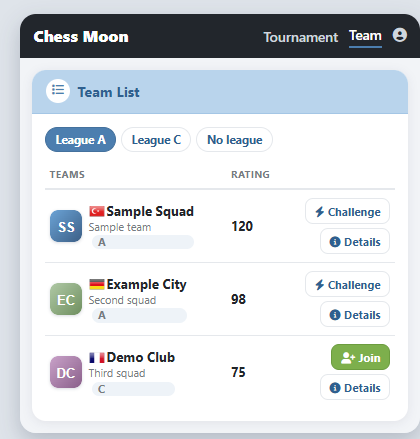
Teams
- Build your own team on the site. Teams have their own ratings and compete in the league every chess season.
- Teams play in League C first and climb up to League A by winning team matches. The league tables are published on the Team page.
- Captains challenge other teams and pick the boards for every match; members set how often they want to play in Team preferences.
- Each player is assigned to a numbered board, and the teams meet board 1 against board 1, board 2 against board 2, from 2 up to 20 boards per match. This fixed board assignment mirrors a traditional over-the-board (OTB) club league — a format most online sites cannot run out of the box without complex external management.
- Every team has its own page with its members, matches and a wall, and the captain can send a message to the whole team.
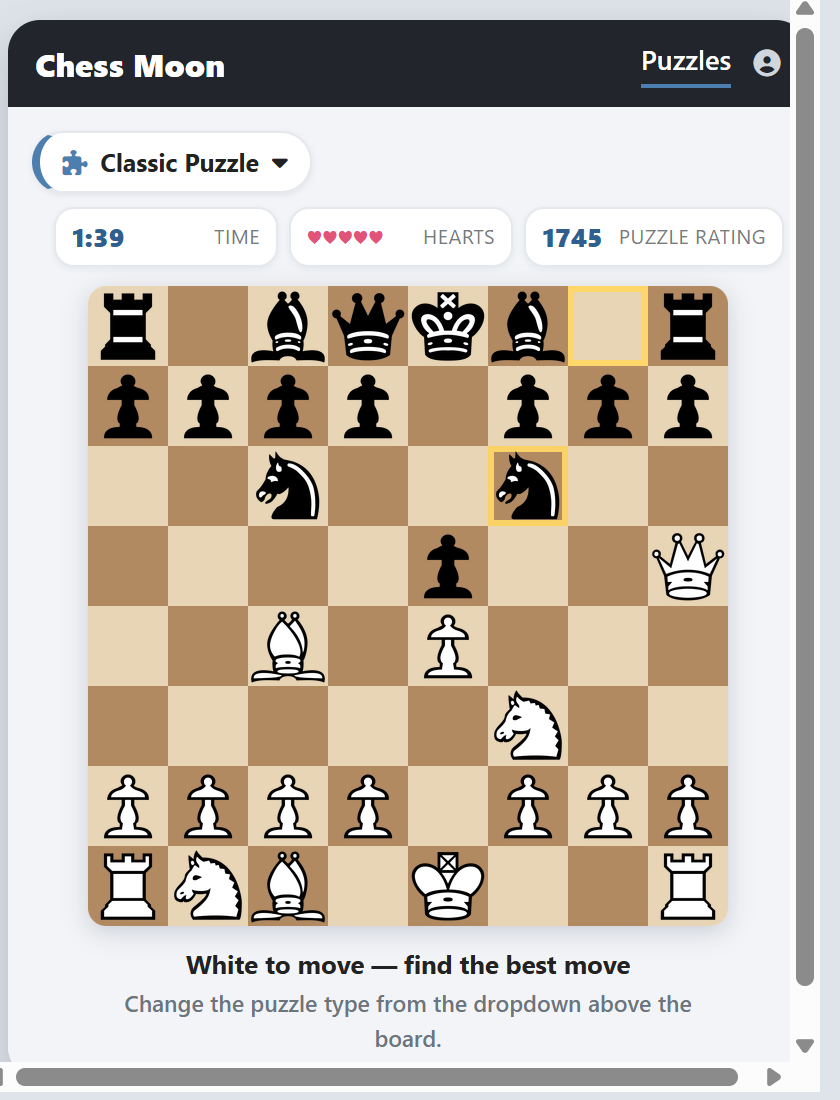
Puzzles
- Solve puzzles to improve your tactics and raise your puzzle rating.
- Pick the puzzle type from the menu above the board: Classic, Streak, Storm or Daily.
- Streak ends with the first wrong move, Storm gives you three minutes, and the Daily puzzle is the same for everybody.
- Puzzles are authored by the players: you send in the position and the solution line, the puzzle team reviews it, and it joins the pool once it is published.
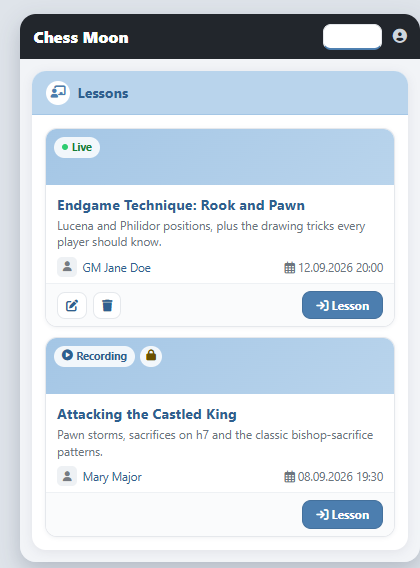
Lessons
- Chess lecturers can give lessons to several players at the same time; premium users benefit from lessons and tactics training.
- A lesson is a normal chess board, so you can follow the moves, replay the lesson steps and ask questions in the chat.
- Live lessons and recordings are listed together, so you can still watch a lesson you missed.
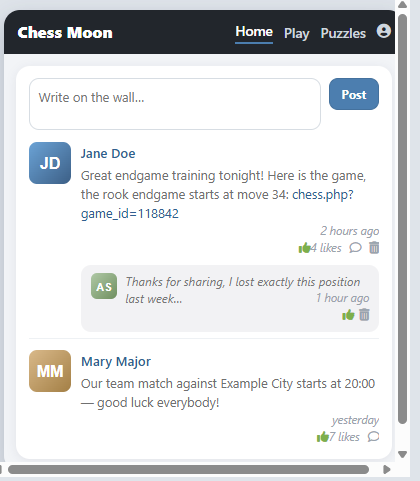
The Wall
- Share images, videos or chess games on your wall and on the friends wall; paste a link and it becomes a clickable link or an embedded player.
- Other players can like your entries and reply to them.
- Every team has a wall of its own, so the members can talk without leaving the team page.
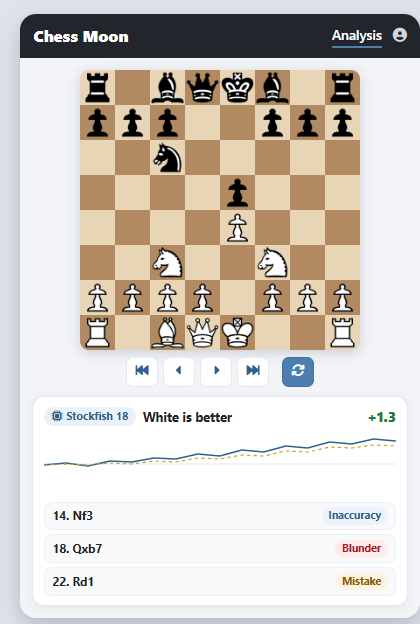
Analysis
- Open a finished game and press Analyse: the engine examines the whole game move by move.
- The Live Assessment panel under the board shows the current evaluation, an evaluation graph and the mistakes the engine has found.
- Accuracy and the blunder / mistake / inaccuracy counts of both players are listed beside the notation.
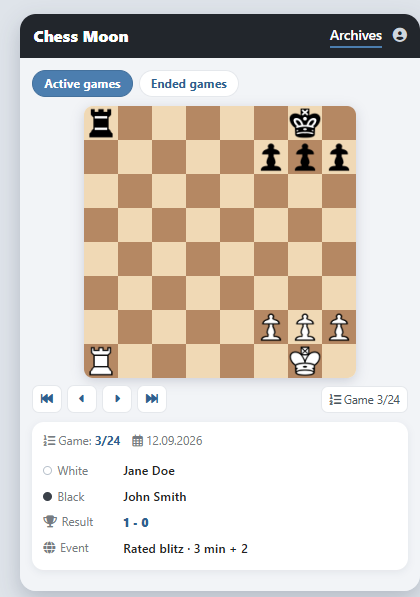
Archives
- Every game you play is kept in your archives, with the moves, the players and the result.
- Play a game back on the board, look at the best games of a period, or download your games in PGN format.
- Switch between Active and Ended games and jump straight to any game of the list.
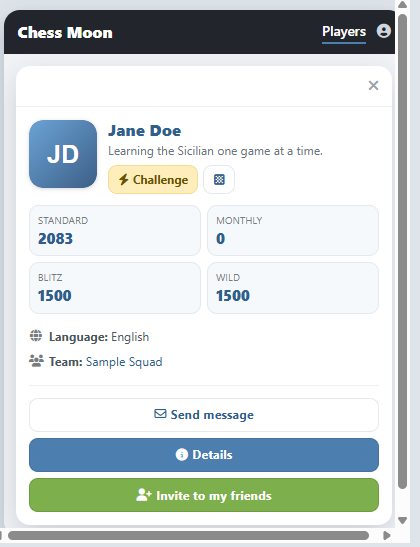
Add Friend
- Click a player's name to open their card, then use Invite to my friends to send a friend request.
- The invited player sees the request on the home page and can accept or decline it.
- Your friends are listed together, so you can challenge them, message them or invite them to a game in one click.
Multiple Platforms
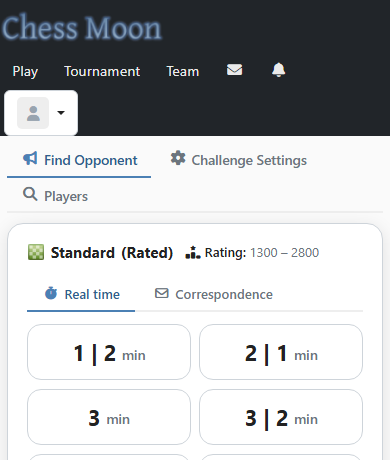
- Players can play via mobile or using software. XFCC Protocol is supported; users can connect with chess tools like SCID, XecTool etc.
Some other features…
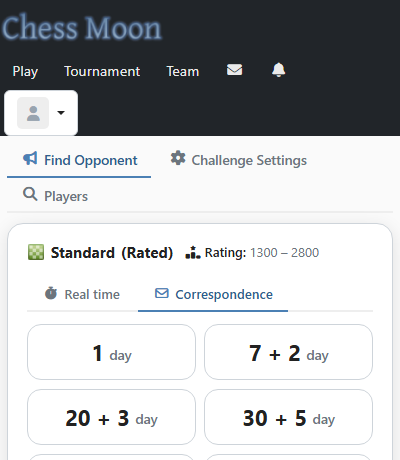
- Premove is supported on blitz games.
- A vacation system is available for correspondence games.
- Two clocks can be activated on correspondence games; one for the game, one for the move.
- Timeseal is a utility which allows the server to account for the effects of lag.
- Players who do well on the site are awarded premium membership and medals like Merit, Success and Honor.
- Chess lecturers can give lessons to multiple users; premium users benefit from lessons and tactics training.
- Players may download games in PGN format.
We got you covered
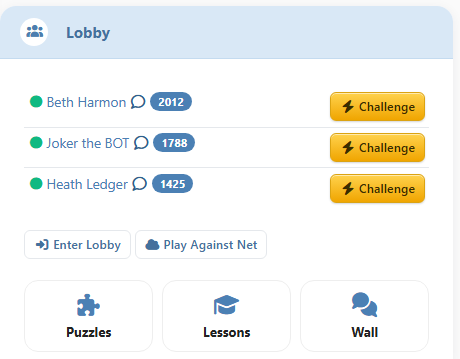
The site is available wherever the internet is. You can start playing without registering — even Guest accounts can use most site features. Guest users cannot make rated games and some features are disabled automatically.
No fees for playing. Premium membership is free for players holding a Grandmaster, International Master or FIDE Master title.
Play with your friends and partners of choice — everybody who is just as enthusiastic about chess as you are. We are looking forward to seeing you!
Board Editor
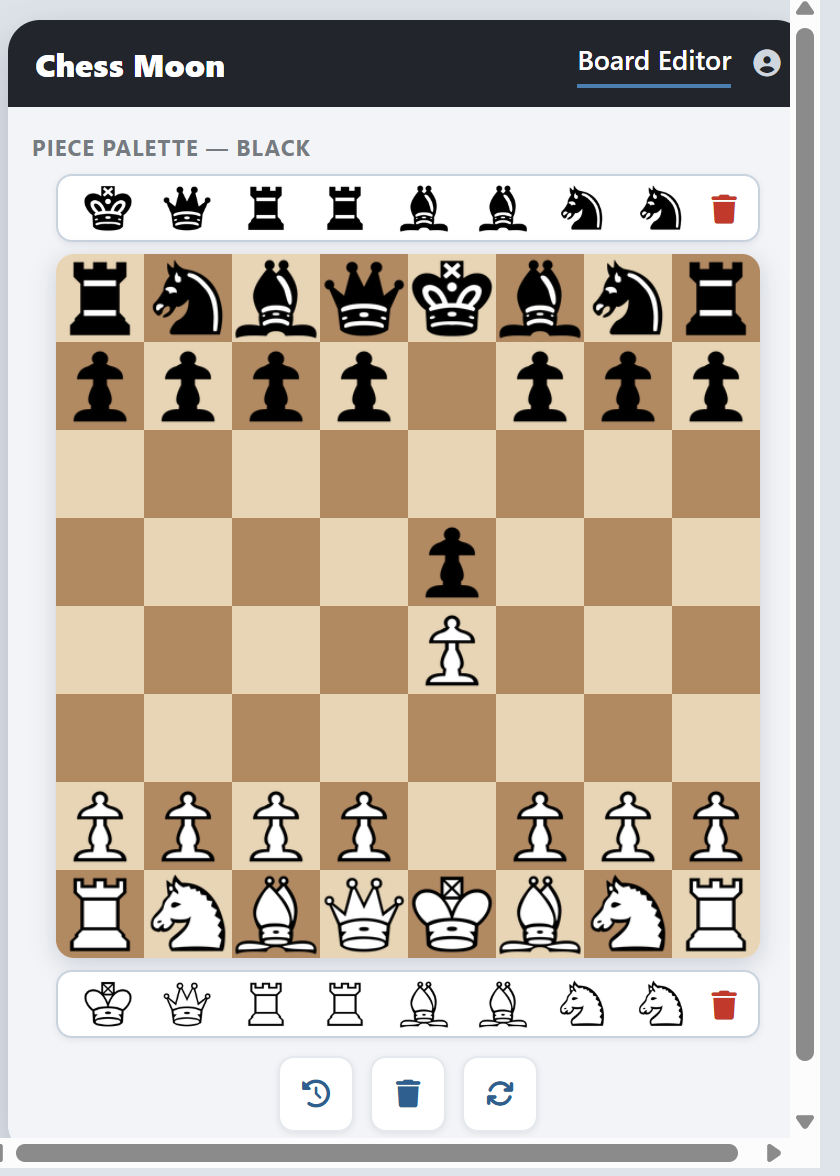
- Set up any position by dragging the pieces from the palette onto the board.
- Choose the side to move, the castling rights and the en passant square with a click.
- The FEN of the position is written while you edit it — copy it and use the position in a game, a lesson or a puzzle.
Frequently asked topics to get you started.
About XFCC
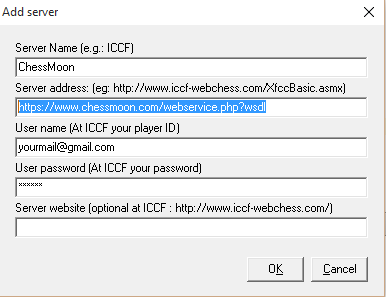
You can connect to the system using XFCC-supporting tools. For more info…
Server Address: https://www.chessmoon.com/webservice.php?wsdl
You can use your username (e-mail) and password.
XEC Tool server configuration:
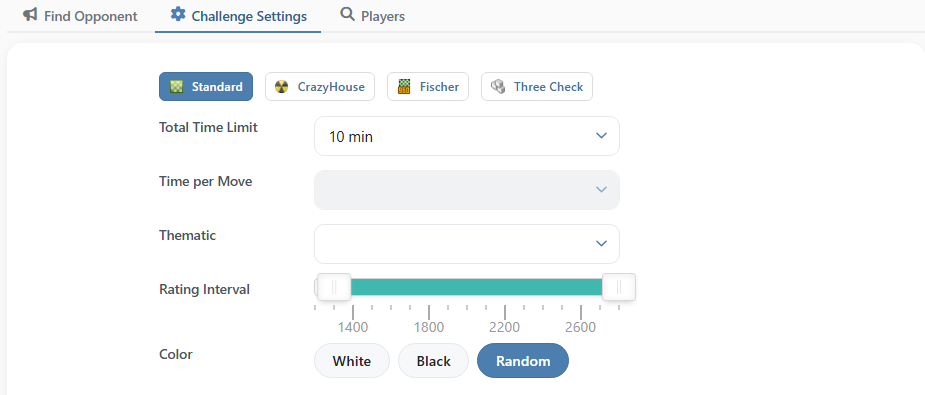
Lobby
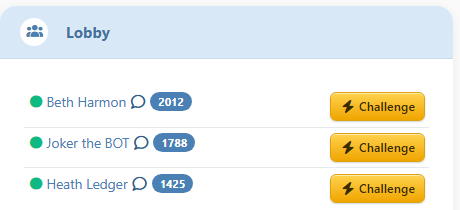
You can enter the lobby to be found more easily by opponents. While you're in the lobby, invitations are accepted automatically.
Tournaments
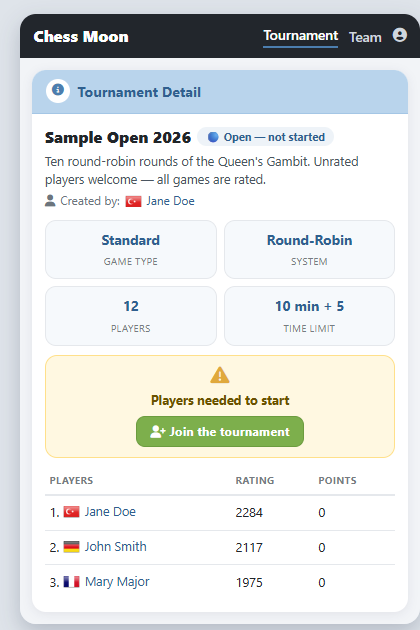
Tournaments are listed under Tournament in the main menu. Open tournaments are grouped as Pending, Ongoing and Finished; the icons on every card show the game type (Crazyhouse, Three Check, Chess960), the pairing system (Round-Robin or Swiss) and the tournament class.
A tournament needs the number of players it was created for before it can start. Until then you can join it yourself and invite your friends — the join button appears on the tournament page.
Tournament types you can meet:
- Thematic — every game starts from the same opening position.
- Marathon — runs over a longer period; players may join after it has started and play as many games as they like.
- Class — A, B and C classes, so players of similar strength meet each other.
Teams
Every player can found a team from Team in the main menu. A new team starts in League C; the best teams of the season are promoted to League A. League tables and the team list with the team ratings are on the same page.
To join a team, use Join this team in the team list or apply on the team page. The captain accepts the application, and the same page lets you send a message to the whole team, change your team match preferences or leave the team.
Team vs. team matches are played board by board. The captain names one player for every board, and the two teams meet board 1 against board 1, board 2 against board 2 and so on, with the colours alternating from board to board. A match can be set up with 2, 4, 6, 8, 10 or 20 boards, so even a large club meeting fits into one match. This fixed board assignment is the traditional over-the-board (OTB) club league format — most online sites do not support it out of the box and need complex external management to run such a league.
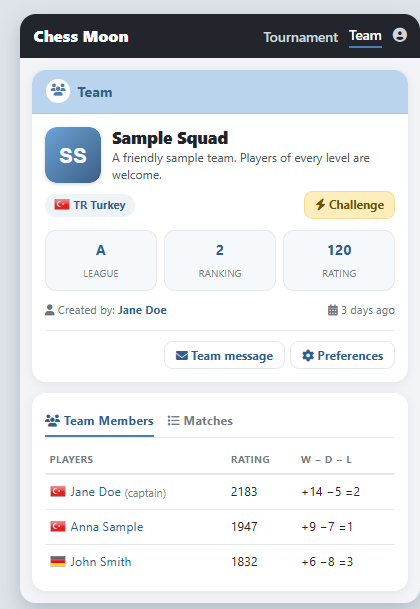
On a team page you can follow:
- Team members — ratings, win/draw/loss record and team points.
- Team matches — the challenges played on behalf of the team, board by board.
- Wall — messages written by the team members.
Board Editor
You can reach the Board Editor from the Board Editor tile in the Tools box of the main menu, and it can be used without registration.
Drag a piece from a palette onto a square to place it: the top palette holds the black pieces, the bottom one the white pieces, and the bin at the end of a palette removes a piece. The three buttons under the board set up the starting position, empty the board and turn the board around.
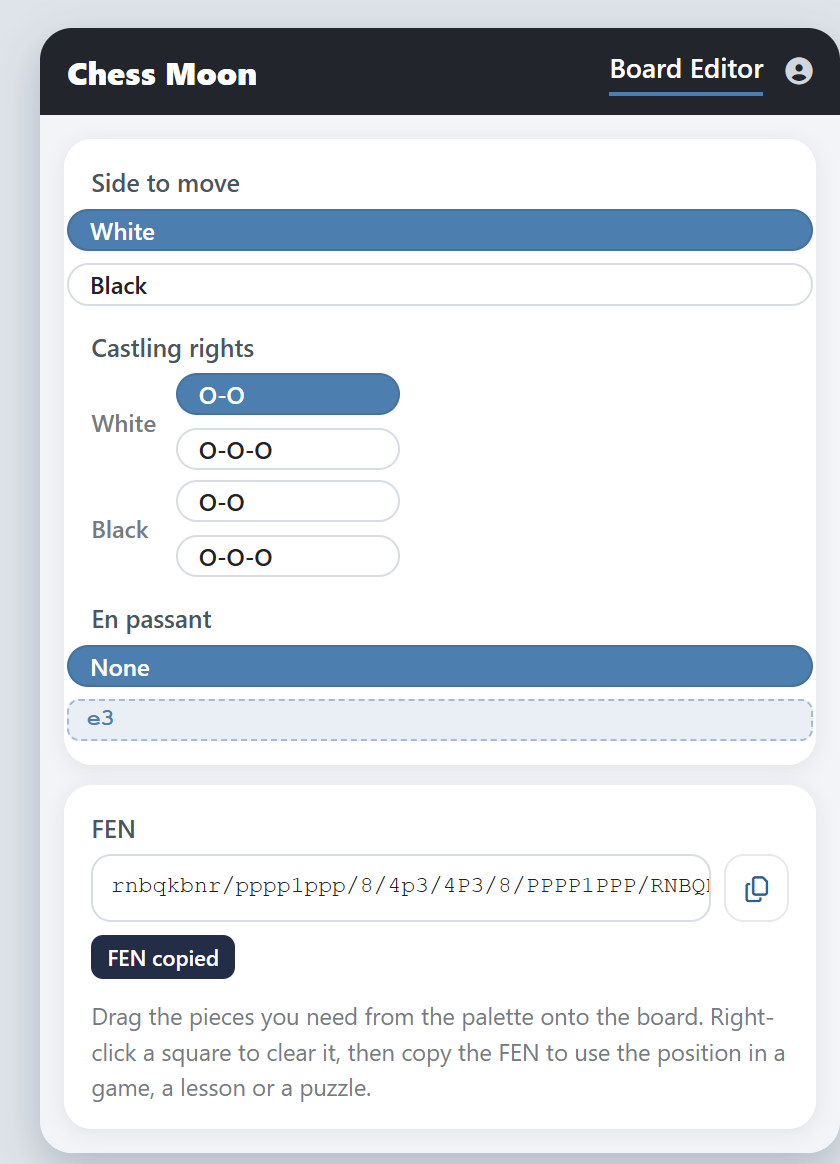
Next to the board you can set:
- Side to move — White or Black.
- Castling rights — short and long castling for both colours.
- En passant — the square a pawn may be captured on; it is shown next to the toggle.
The FEN of the position is filled in as you edit and the copy button puts it on your clipboard — ready to paste into a game, a lesson or a puzzle.
Lessons
The lesson list is reachable from the Lessons tile in the main menu. Every lesson shows its instructor, its date and whether it is live or a recording; private lessons are marked with a lock.
Press Lesson to open the board — a live lesson opens the lesson board directly, and you can follow the instructor's moves there.
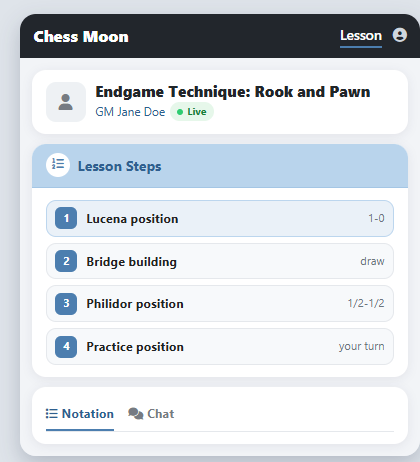
On the lesson board you can:
- Follow the Lesson Steps list and jump back to any position of the lesson.
- Watch the lesson video and read the notation.
- Ask the instructor your questions in the lesson chat.
Puzzles
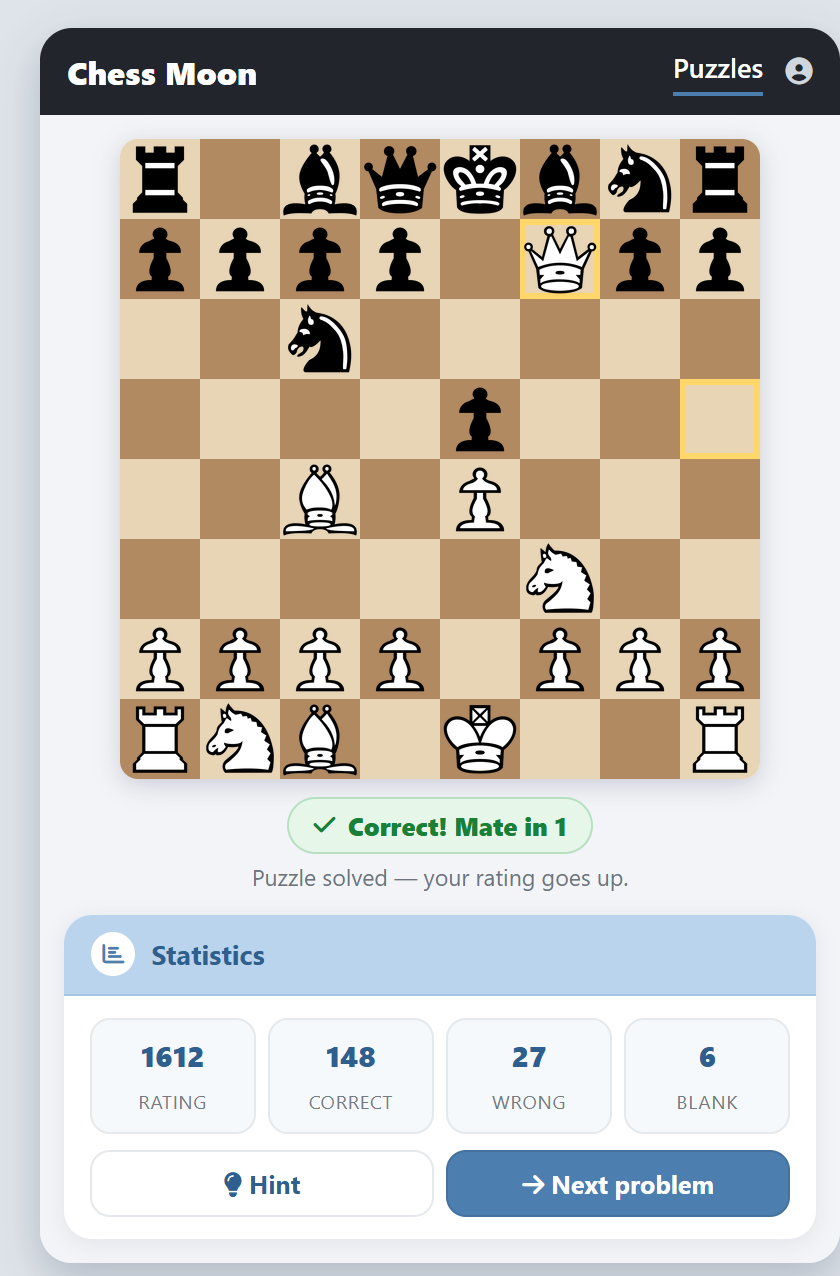
Puzzles are under Puzzles in the main menu. The board shows the position and it is your turn to find the best move. A correct answer raises your puzzle rating; an incorrect or blank answer lowers it.
Use the dropdown above the board to change the puzzle type. The chips beside it show the running values of the type you picked — time, hearts, run length, score and your puzzle rating.
Where the puzzles come from. Puzzles are written by the players, not copied from a database. Press New Puzzle under the board and enter the position (FEN), the solution line, the question, the rating, the time limit and the labels; the puzzle is saved at once and the same request appears in the puzzle management team's inbox. An administrator opens the puzzle from that notification, checks the position and the line, corrects it if necessary and publishes it by setting it to Active — only then does it enter the common puzzle pool, where it is served together with its rating and its correct / incorrect counters.
My Puzzles collects everything you have submitted yourself, and every puzzle carries a thumbs-up / thumbs-down vote and a report link for a wrong or unclear position.
Puzzle generation on most other sites works the other way round: the pool is mined automatically from real game databases with engine scripts, so there is no user authoring and no moderation step at all. Chessmoon's submit → review → pool route lets the community write the puzzles directly.
Puzzle types:
- Classic Puzzle — a clock for every puzzle and five hearts; hints are allowed.
- Puzzle Streak — solve one puzzle after another; a wrong move ends the run.
- Puzzle Storm — three minutes; solve as many puzzles as you can.
- Daily Puzzle — the same puzzle for everybody, once a day.
The hint and the Next Puzzle buttons sit in the statistics box under the board, together with your rating and your correct / incorrect / blank counts.
The Wall
Your wall is on the home page and on your profile page. Type your message into the box at the top and press Post — the entry appears at the top of the wall straight away.
Paste a game address, an image or a video link into the text: the wall turns it into a clickable link, a picture or an embedded player.
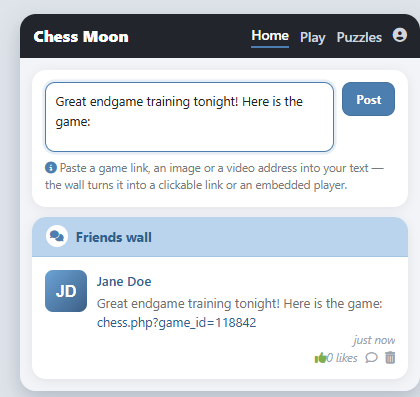
Under every entry you can:
- Like it with the thumbs-up icon and see how many other players liked it.
- Press the speech balloon to write a reply; the reply box stays closed until you open it.
- Delete your own entries and the replies written on them.
Analysis
A finished game can be analysed with the engine. Press Analyse and the board switches to analysis mode: the notation is filled with the engine's assessment and the Live Assessment panel opens under the board.
While you step through the game the evaluation line and the evaluation graph follow every move, and the issue list collects the mistakes of the game so you can jump straight to them.
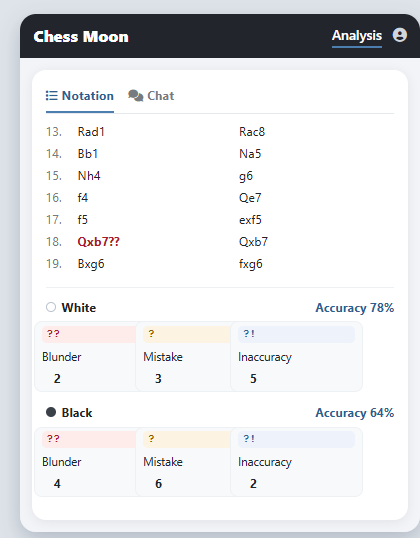
Next to the notation you also get:
- Accuracy of both players as a percentage.
- Blunder, Mistake and Inaccuracy counts for White and for Black.
Archives
The archives are reachable from your profile. Active games lists the games that are still going on and Ended games the finished ones; pick a game from the list to load it on the board.
You can step through the moves on the board or read them in the move list beside it, and the game header shows the players, the result and the event.
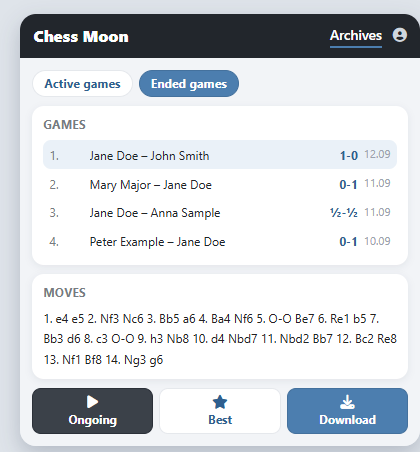
The buttons under the list:
- Ongoing — the games that have not finished yet.
- Best — the best games of the period.
- Download — your games as a PGN file, ready for your own chess software.
Add Friend
Click a player's name anywhere on the site to open the player card. The green Invite to my friends button on that card sends a friend request; for players who are already your friends the button is not shown.
Friend requests are listed on the home page. Press Accept to add the player to your friends or Decline to remove the request, and you can withdraw a request you sent or remove a friend from your friends list later.
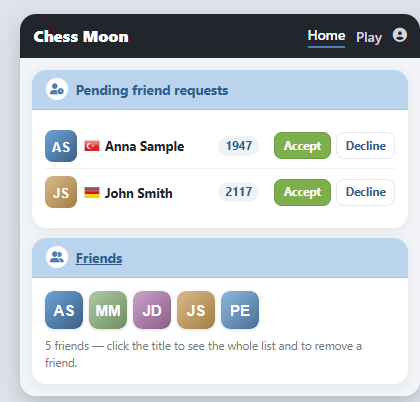
Friends help you to:
- Challenge a player you know with one click instead of searching for them.
- See who is online and invite them to a game.
- Post on the friends wall that all your friends can read.
Credits
Your Site Credits are on your profile page, next to the coin icon. With the thumbs-up button there you can raise another player's credits, and with the thumbs-down button you can lower them.
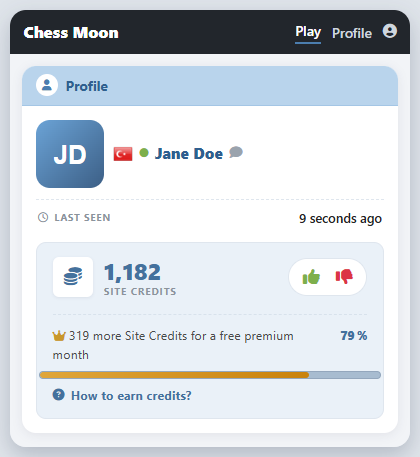
You earn credits by:
- Visiting the site — +5 credits for players who were on the site the previous day (the job runs at night, so it credits one day back).
- Being voted up — +5 credits for every thumbs-up you receive; a thumbs-down costs you 5.
- Accepting a friend — +5 credits for both players (removing a friend costs 4).
Achievements are recorded separately and send you a message: your 10th, 50th, 100th… finished game, 5 / 10 / 20… active games, your friend and wall counts, and your first places in the rankings.
Free premium: once your credits pass 1,500 you can take a free premium month from your profile page — each month you take costs 1,000 credits. Reaching 2,000 and 2,500 credits also earns you the social medals.
Settings
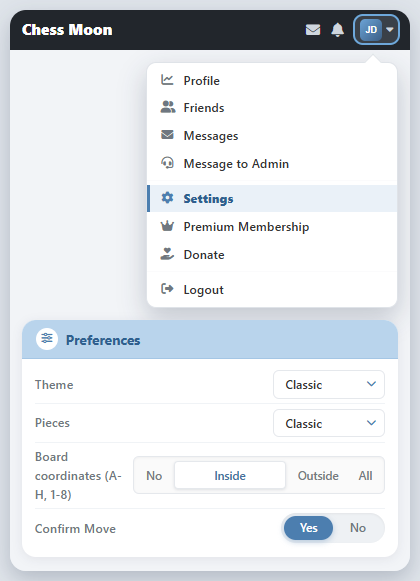
You can change language, board, vacation and other settings from the menu. You can reach the menu from your icon.
Useful links and related sites.